Connect your bank feed to Xero for easy financial admin
No more fuzzy numbers and manual work! Integrate your business bank account so your transactions flow into your Xero accounting software without you lifting a finger. Then reconcile transactions with Xero’s automations for a clear financial picture and all your data in one place.
Seamless bank data transfers
Want to save time? Xero pulls in all your transaction data so you don’t need to upload bank statements. More on bank reconciliation with Xero.
Get bank transactions into Xero
Forget manually uploading online bank statements – let Xero’s bank integration pull in the data automatically.
Stay up to date with your finances
Let Xero suggest transaction matches to quickly reconcile your books. Get a clear view of your finances.
Keep your data safe
Your data is protected every step of the way – transactions feed into Xero via a secure, encrypted bank connection.
88% of customers agree Xero helps manage business finances all in one place
*Source: survey conducted by Xero of 271 small businesses in the US using Xero, May-June 2024
See your bank transactions flow into Xero
Gone are the days of logging into your bank to download a statement. Now, easily link your bank and checking accounts to Xero just once. And from then on, see your bank transaction data flow straight into your Xero accounting software.
- Set up automatic transaction imports from a wide range of US banks and financial institutions
- Connect multiple banks and checking accounts – and see all your financial data in one place
- Import historical data when you first connect to Xero
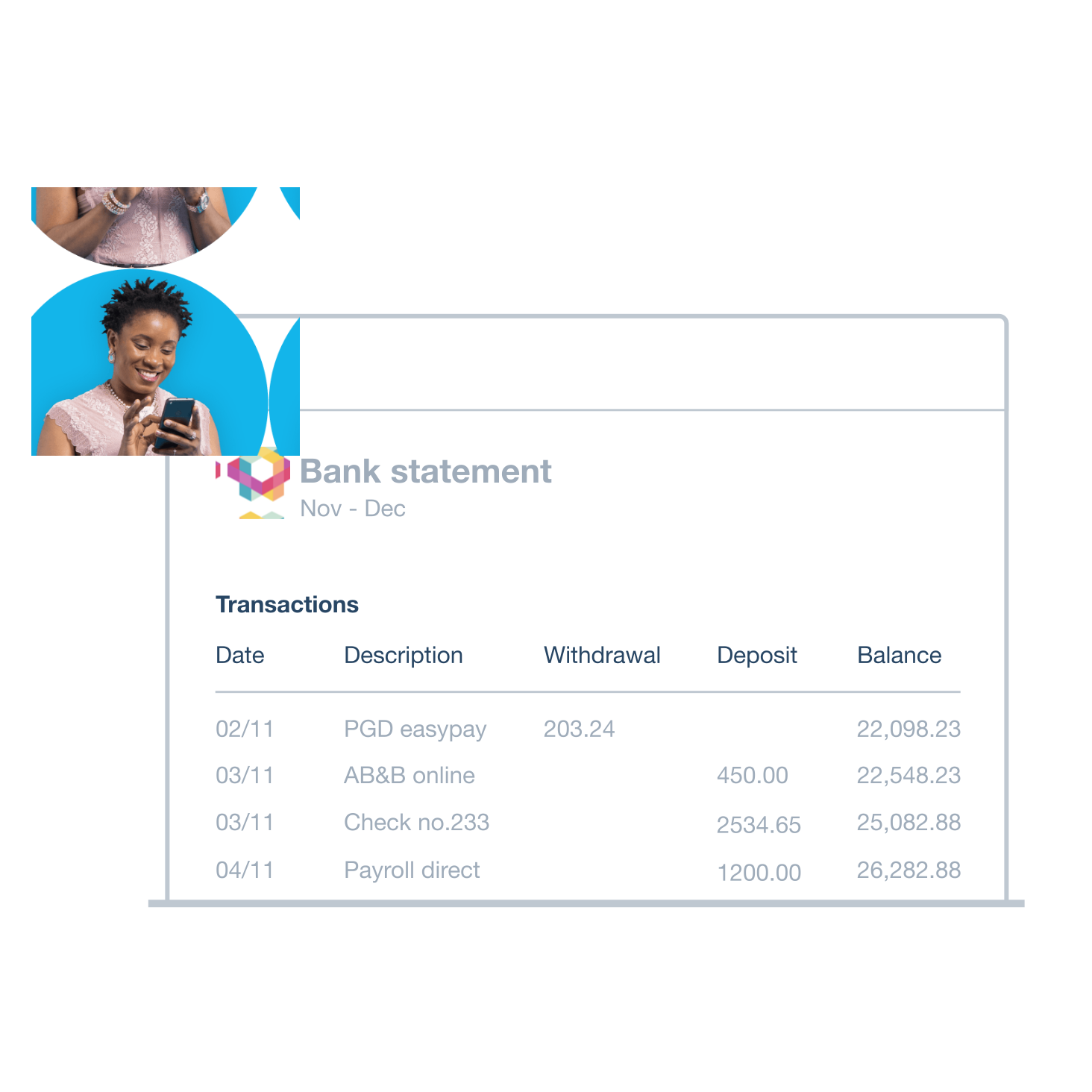
Directly import PDF statements into Xero
If your bank doesn’t connect to Xero, it’s no problem! Transferring your data is still quick and easy. Upload your PDF statement directly into Xero – no third-party software needed. Xero then helps you manage and reconcile your transactions as usual.
- Upload a PDF bank statement from a supported bank
- Import transactions from your online banking in OFX, QIF, QBO, QFX or CSV formats, then upload it to Xero
- If you’re importing transactions from a CSV file, you can review and amend the file from within Xero beforehand
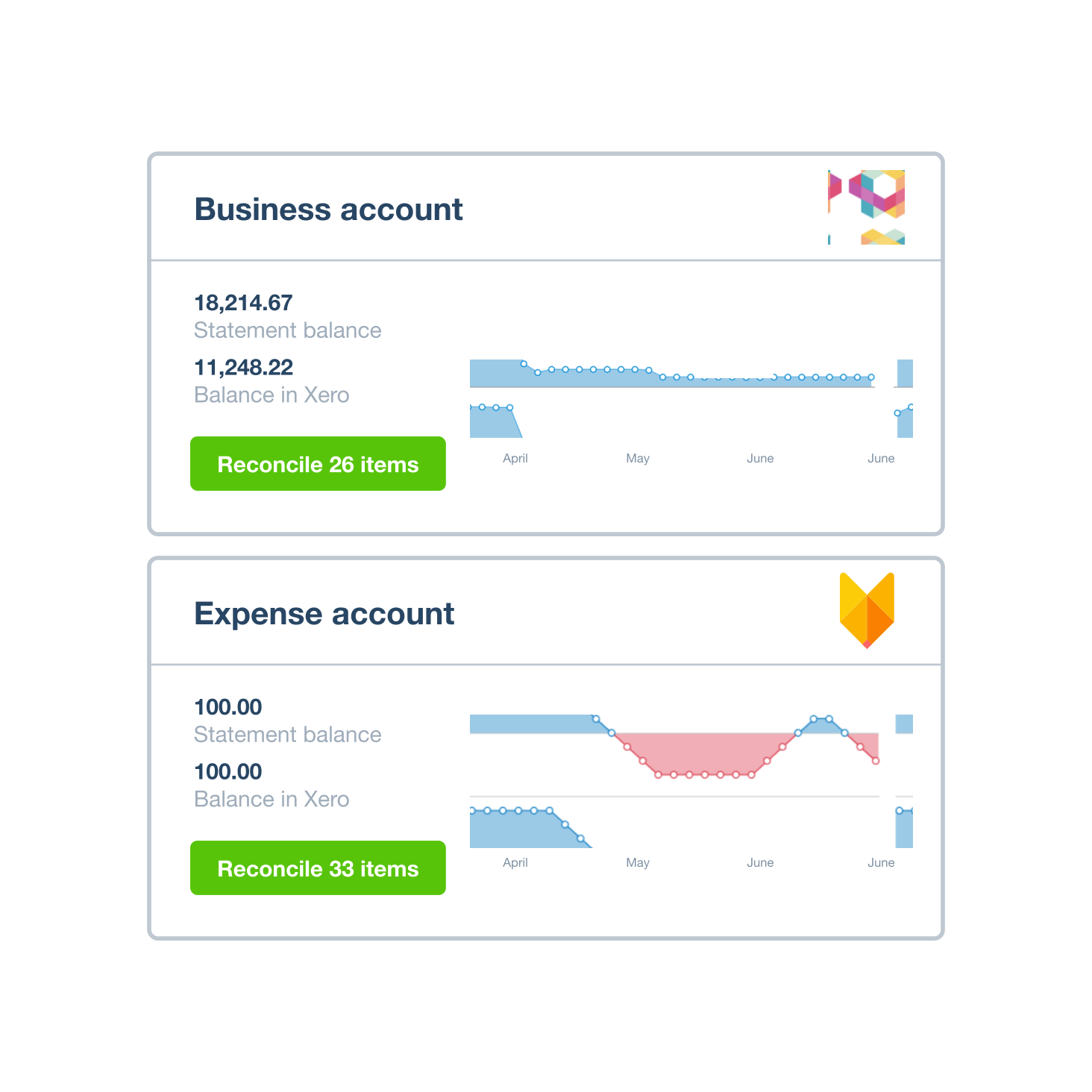
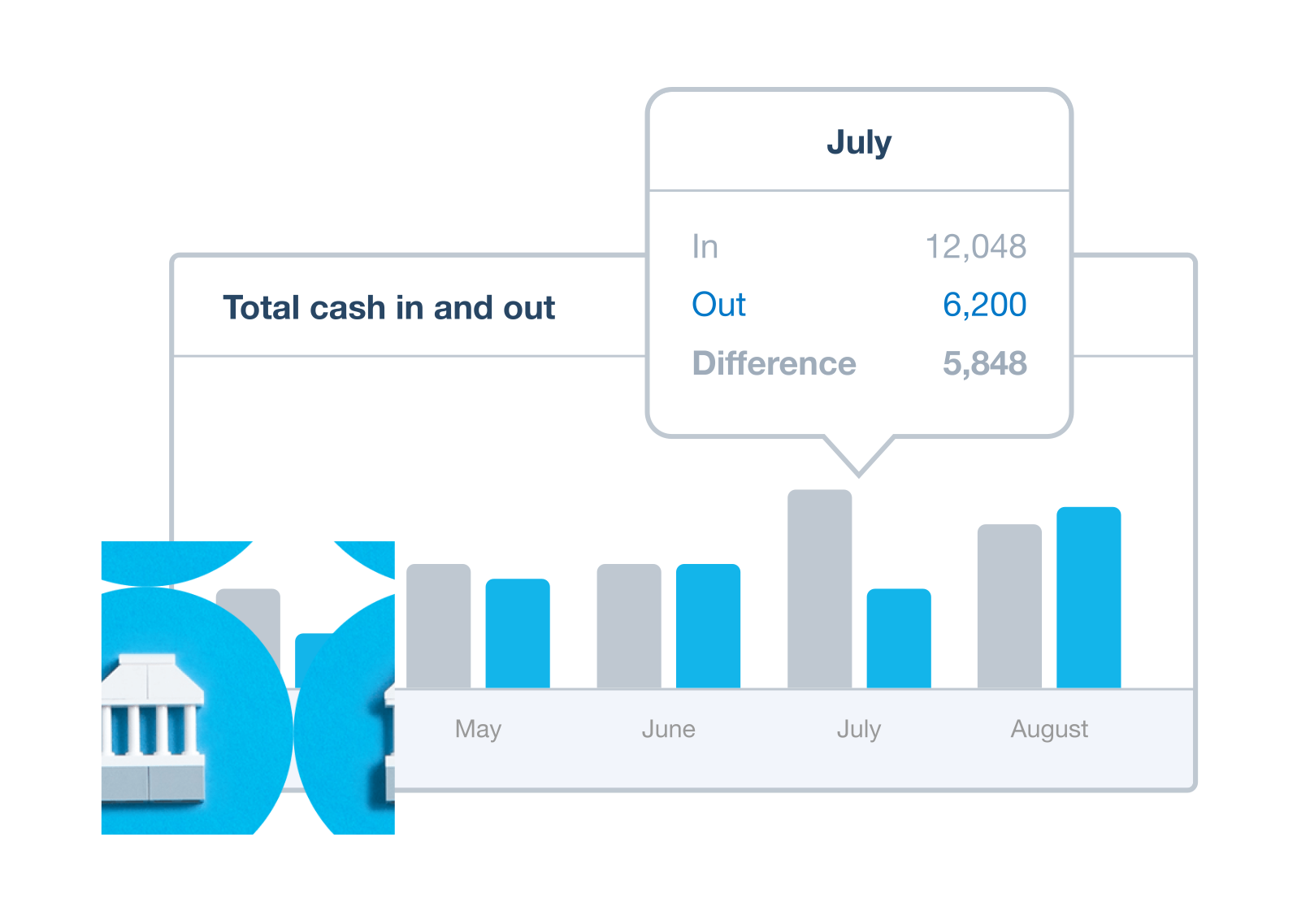
Get an accurate view of your finances
With automatic bank feeds, you always have the latest info on your cash flow. Xero suggests matching transactions so you can speed through your bank reconciliations – including on your phone or tablet. This way you keep a reliable view of the money in and out of your business.
- Approve Xero’s suggested transactions matches – including amounts from online payments – on a single screen
- Set up bank rules for recurring transactions so Xero categorizes them for you – just click ‘Okay’ to approve
- Reconcile often to know exactly what’s in the bank and improve the accuracy of Xero cash flow forecasting
Xero connects to thousands of US banks for automatic bank feeds and easy bookkeeping
These include American Express, Bank of America, Capital One, Citibank, and many more.
See the full list of US banks that integrate bank feeds with Xero
Keep your data safe
Xero bank integration gives you all confidence and none of the fuss. Encrypted connections protect your data while it’s on its way to Xero. And once your data is in your Xero organization, it’s protected by multiple layers of security.
- Transactions are shared only between your bank, Xero, and any other party you choose
- Only people you give access to can see your bank feed data in Xero
- Xero can’t make payments through your bank feed connection – the data is read-only
The thing I love most about Xero is the great integration with all the major platforms I use. So Shopify, Stripe – everything works seamlessly.
Monique Malcolm, Tiny Action

Pay your bills at no extra cost
Free standard ACH bill payments are now included in Xero business plans.*
Need help with bank feeds as a Xero user?
Xero Central is our comprehensive knowledge base, filled with articles to help you get the best out of Xero.
Connect your bank
Connect bank accounts and get data into Xero automatically. Refresh the feed to load your latest transactions.
Set up bank feeds
Bank feeds automatically pull in transactions from a bank, or a payment provider like Stripe or PayPal.
Get help if your bank feeds are disrupted
If bank feeds aren’t working as they should, find a solution or workaround.
Frequently asked questions
A bank feed is an automatic connection between your bank account and your accounting software that imports transactions daily. Instead of manually entering transactions, your bank automatically sends a record of every payment, receipt, and transfer into Xero. This saves time, reduces data-entry errors, and keeps your books up to date with minimal effort.
A bank feed is an automatic connection between your bank account and your accounting software that imports transactions daily. Instead of manually entering transactions, your bank automatically sends a record of every payment, receipt, and transfer into Xero. This saves time, reduces data-entry errors, and keeps your books up to date with minimal effort.
In Xero, go to Accounting > Bank Accounts and click Add Bank Account. Search for your bank – most major US banks are supported. Once you select your bank, follow the prompts to authorize and connect it to Xero. Once connected, transactions flow into Xero automatically.
In Xero, go to Accounting > Bank Accounts and click Add Bank Account. Search for your bank – most major US banks are supported. Once you select your bank, follow the prompts to authorize and connect it to Xero. Once connected, transactions flow into Xero automatically.
In Xero, go to Accounting > Bank Accounts and click Add Bank Account. Search for your bank – most major US banks are supported. Once you select your bank, follow the prompts to authorize and connect it to Xero. Once connected, transactions flow into Xero automatically.
In Xero, go to Accounting > Bank Accounts and click Add Bank Account. Search for your bank – most major US banks are supported. Once you select your bank, follow the prompts to authorize and connect it to Xero. Once connected, transactions flow into Xero automatically.
Xero connects with most major US banks and credit unions, including Chase, Bank of America, Wells Fargo, Citibank, US Bank, and many others. If your bank isn't listed with a direct feed, you can also import bank statements manually. If your bank isn’t listed, you can add an account without a bank feed and manually import statements or set up a third-party feed like Yodlee.
Xero connects with most major US banks and credit unions, including Chase, Bank of America, Wells Fargo, Citibank, US Bank, and many others. If your bank isn't listed with a direct feed, you can also import bank statements manually. If your bank isn’t listed, you can add an account without a bank feed and manually import statements or set up a third-party feed like Yodlee.
Yes, there's no limit to the number of bank accounts you can add. You can connect accounts from multiple banks or financial institutions, including checking accounts, savings accounts, credit cards, and payment platforms like Stripe and PayPal. All accounts appear in one place in Xero, so you can reconcile across your full financial picture from a single screen.
Yes, there's no limit to the number of bank accounts you can add. You can connect accounts from multiple banks or financial institutions, including checking accounts, savings accounts, credit cards, and payment platforms like Stripe and PayPal. All accounts appear in one place in Xero, so you can reconcile across your full financial picture from a single screen.
Bank feeds keep Xero current automatically – transactions appear daily without you having to export a file, format it, and upload it. Practically, this means transactions flow into Xero automatically, and Xero's matching suggestions are already waiting each time you sit down to reconcile. For businesses reconciling daily or weekly, the time savings can compound quickly and it can be much easier to stay on top of a steady drip of transactions than to work through a backlog from irregular manual uploads.
Bank feeds keep Xero current automatically – transactions appear daily without you having to export a file, format it, and upload it. Practically, this means transactions flow into Xero automatically, and Xero's matching suggestions are already waiting each time you sit down to reconcile. For businesses reconciling daily or weekly, the time savings can compound quickly and it can be much easier to stay on top of a steady drip of transactions than to work through a backlog from irregular manual uploads.
You have a few options. Most banks can be added manually by downloading statement files, like CSVs, then uploading directly into Xero. If your bank doesn't have the ability to download statement files, check for a third-party feed connector for your institution, like Yodlee. Many regional banks and credit unions are supported this way. As a last resort, transactions can be entered manually. However you get the data in, it appears in the same reconciliation screen and works exactly the same way.
You have a few options. Most banks can be added manually by downloading statement files, like CSVs, then uploading directly into Xero. If your bank doesn't have the ability to download statement files, check for a third-party feed connector for your institution, like Yodlee. Many regional banks and credit unions are supported this way. As a last resort, transactions can be entered manually. However you get the data in, it appears in the same reconciliation screen and works exactly the same way.
It depends on your bank. When setting up an automated bank feed in Xero, you may be given the option to pull historical data from your bank account. If not, you can upload the data from a PDF instead.
It depends on your bank. When setting up an automated bank feed in Xero, you may be given the option to pull historical data from your bank account. If not, you can upload the data from a PDF instead.
It’s recommended to reconcile weekly or daily. The more frequently you reconcile, the easier it is to spot errors and the less time it takes each session. Xero makes daily reconciliation fast by using bank rules to automatically match and categorize recurring transactions, so you often just need to review and confirm.
Check out Xero’s guide to bank reconciliation for more best practices
It’s recommended to reconcile weekly or daily. The more frequently you reconcile, the easier it is to spot errors and the less time it takes each session. Xero makes daily reconciliation fast by using bank rules to automatically match and categorize recurring transactions, so you often just need to review and confirm.
Check out Xero’s guide to bank reconciliation for more best practices
Xero accounting software easily connects to your bank to bring your bank transactions into Xero automatically. You can then reconcile your transactions each day, either at your desk or on the move with the Xero Accounting app. Categorize each transaction in Xero yourself, or just confirm what Xero suggests. And that’s it – your books are up to date. Do your reconciliation often for a clear, reliable view of your cash flow and financial performance.
Xero accounting software easily connects to your bank to bring your bank transactions into Xero automatically. You can then reconcile your transactions each day, either at your desk or on the move with the Xero Accounting app. Categorize each transaction in Xero yourself, or just confirm what Xero suggests. And that’s it – your books are up to date. Do your reconciliation often for a clear, reliable view of your cash flow and financial performance.
Bank connection (or bank feed) is the technical link that pulls your transaction data from your bank into Xero. Bank reconciliation is what you do with that data – matching each transaction to the corresponding invoice, bill, or expense in Xero. The bank feed automates the data import; reconciliation is the review step that keeps your books accurate.
Bank connection (or bank feed) is the technical link that pulls your transaction data from your bank into Xero. Bank reconciliation is what you do with that data – matching each transaction to the corresponding invoice, bill, or expense in Xero. The bank feed automates the data import; reconciliation is the review step that keeps your books accurate.
Accounting software for your US small business
Run your business accounting online with Xero. Easy-to-use accounting software, designed for your small business.
- Everything in one place
- Connect to your bank
- Collaborate in real time
- Customize to suit your needs

Here’s how Xero bank feeds work
Press play. All will be revealed.
Get one month free
Purchase any Xero plan, and we will give you the first month free.


*Fees apply for other payment methods.