Take payments on Tap to Pay with Xero
Accept payments on the spot with just your phone. Accept contactless payments from physical cards, digital wallets, and wearables – straight from the Xero Accounting app, powered by Stripe. Accept in-person payments once the work is done, straight from the Xero Accounting app.
Get paid in three simple steps
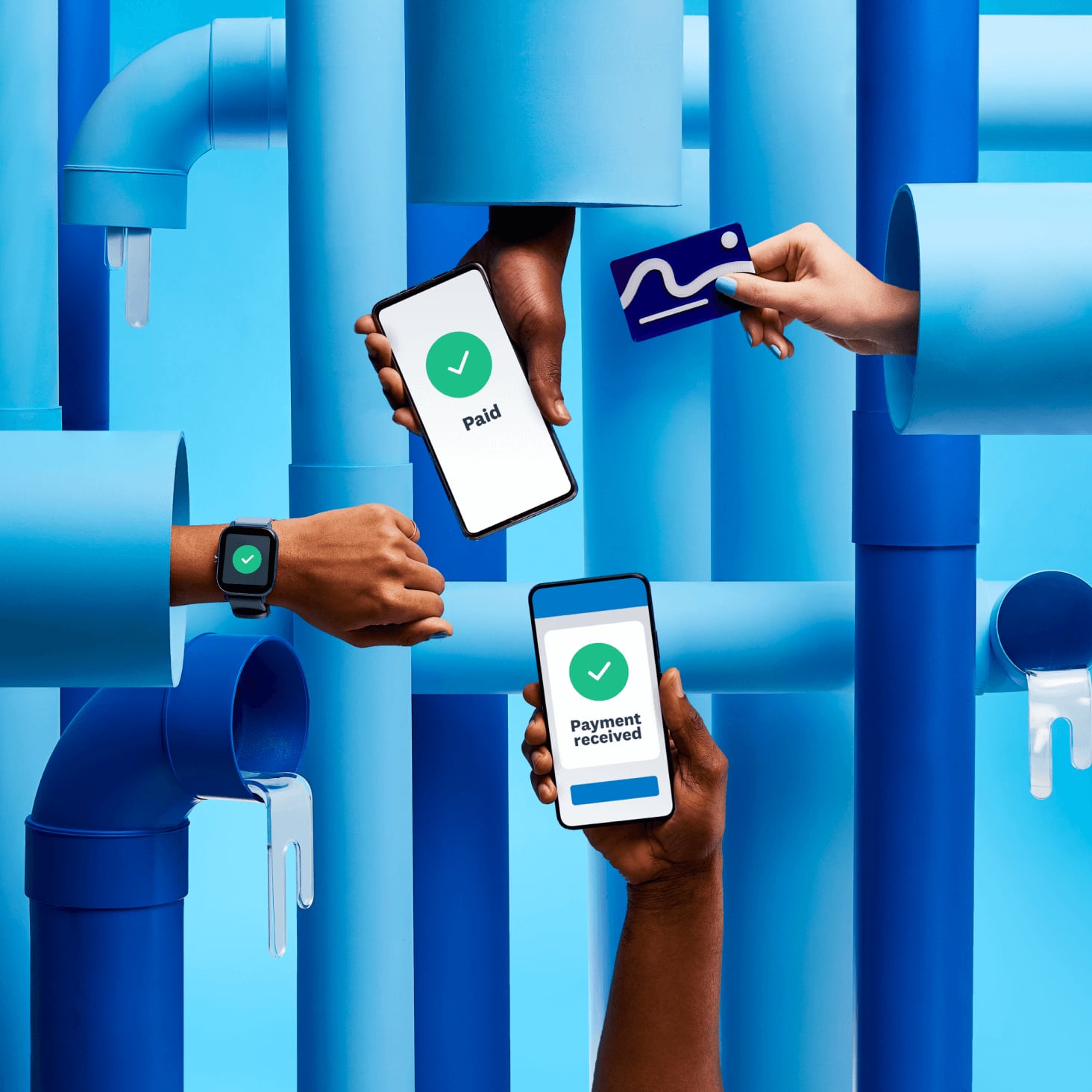
Your customers can pay securely with a physical card, digital wallet, or a wearable device like a smartwatch.
Create an invoice and take payment
Create a new invoice in the Xero Accounting app. Your customer just taps their card, digital wallet, or wearable to pay.
Send a professional digital receipt (if you want)
After payment, you can send a receipt to your customer by email.
Your invoice is marked as paid – ready to reconcile
Xero automatically marks your invoice as paid and ready for bank reconciliation – no manual data entry needed.
Accept Tap to Pay payments on the spot
Simplify how you get paid. Accept in-person contactless payments once the work is done – on site, at a market stall, after a training session. Powered by Stripe and Xero, you spend less time chasing payments and more time doing what you do best.
No physical terminal needed
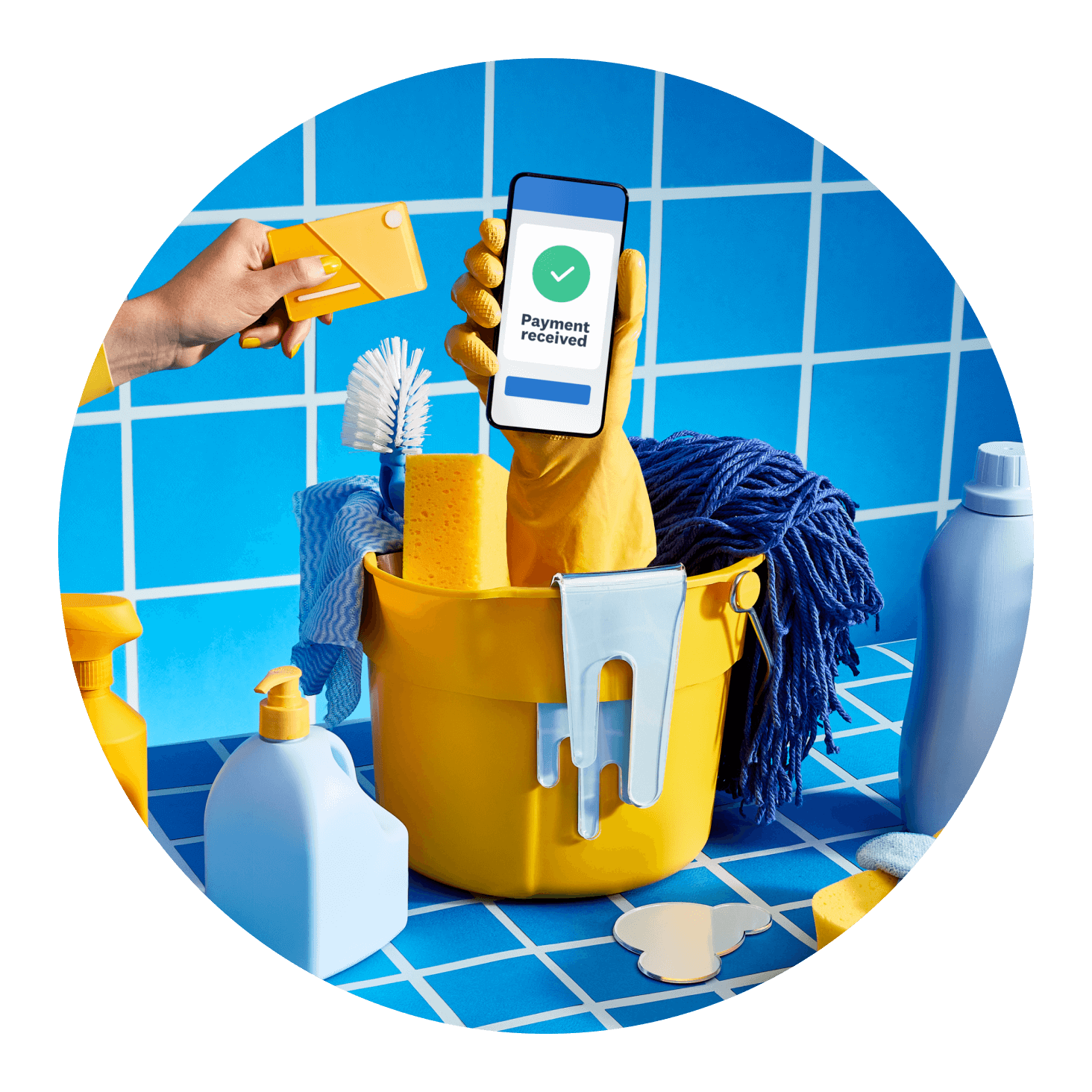
With Xero’s Tap to Pay, there’s no hardware to buy, rent, or carry. Accept mobile payments using only your iOS or Android device with the Xero Accounting app. Tap to Pay is powered by Stripe, so you can accept in-person payments with no physical terminal needed and no sign-up, setup or monthly costs

Go paperless for reduced admin
Create a new invoice or select an existing unpaid one to take payment on the spot. Once your customer taps, the invoice is automatically marked as paid and ready to reconcile. Go paperless for reduced admin with less paperwork, and once payment is made, the invoice is automatically marked as paid in
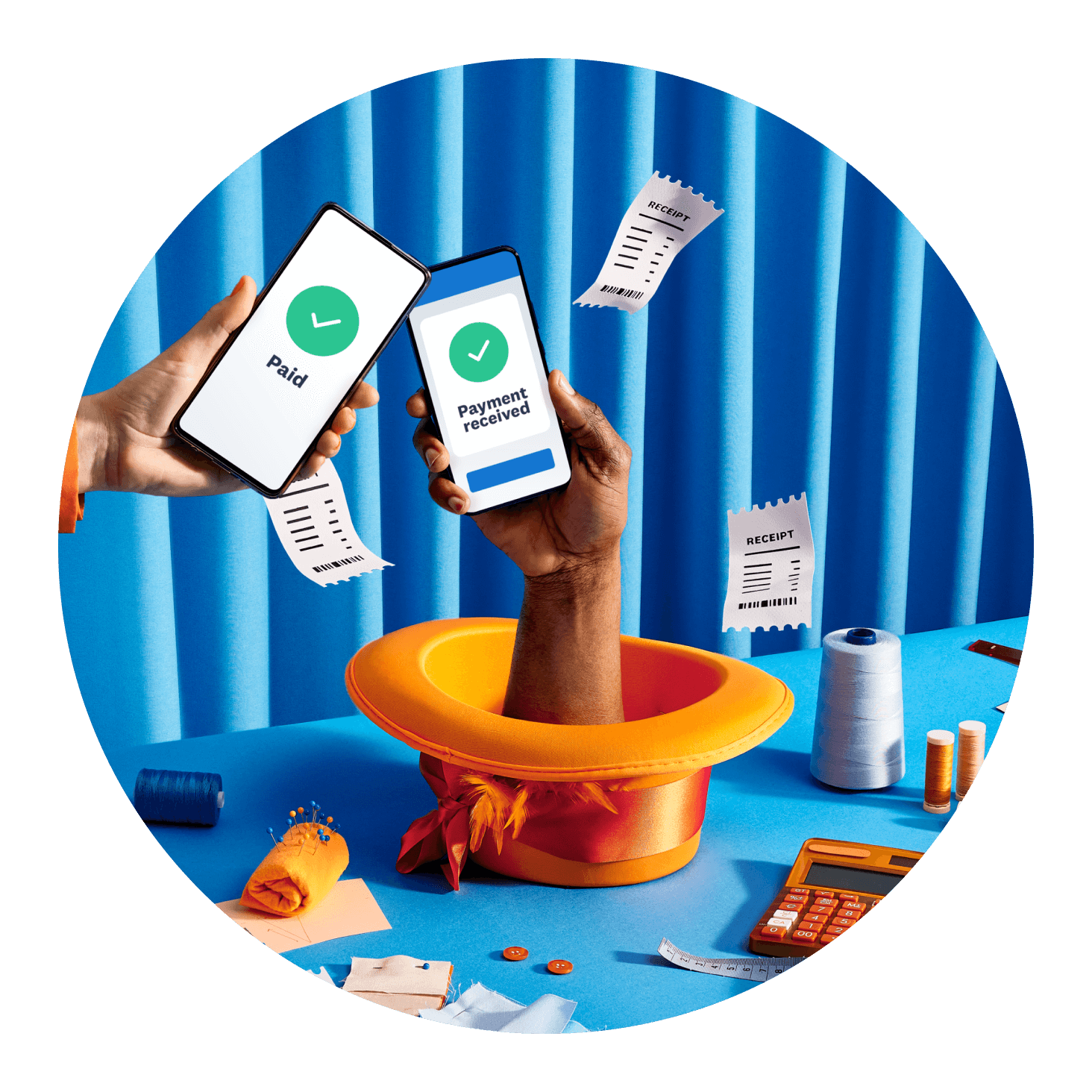
A secure, paper-free way to get paid
Get end-to-end sales and secure payments with Xero. Your customers' payment data is protected by Stripe's enterprise-grade security infrastructure. Offering more ways to pay – cards, digital wallets, wearables – makes you look more professional and helps you get paid faster.

Plans to suit your business
What is Tap to Pay?
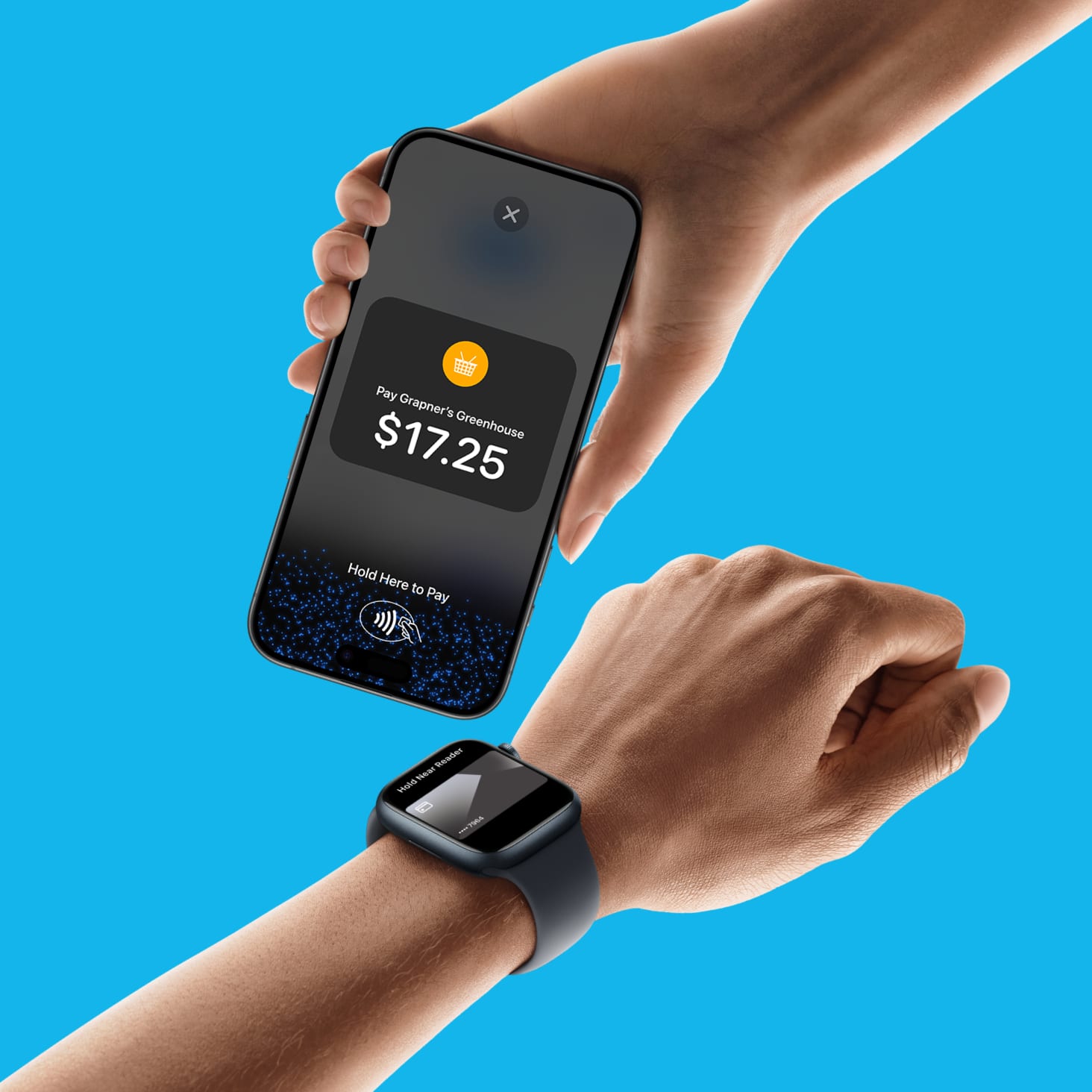
Tap to Pay is a contactless payment method that lets customers pay using physical cards, digital wallets, or wearable devices. Your customer can pay with a physical card, digital wallet, or wearable device by holding it to your phone.
FAQs about Tap to Pay on Xero
To use Tap to Pay on Android with Xero, you'll need:
- an Android phone with an operating system (OS) 11 or higher
- the Xero Accounting app installed
- the right user role in Xero: advisor, standard, or invoice only with the appropriate permission level
Tap to Pay is currently not available for organisations with multiple Stripe accounts connected to Xero.
To use Tap to Pay on Android with Xero, you'll need:
- an Android phone with an operating system (OS) 11 or higher
- the Xero Accounting app installed
- the right user role in Xero: advisor, standard, or invoice only with the appropriate permission level
Tap to Pay is currently not available for organisations with multiple Stripe accounts connected to Xero.
To use Tap to Pay on iPhone with Xero, you'll need:
- an iPhone 8 or later running iOS 17.0 or later
- the Xero Accounting app installed
- a connected Stripe account that meets Stripe's support criteria)
- The right Xero user role: advisor, standard, invoice only sales (quoting and invoicing), or invoice only approve and pay
Tap to Pay is currently not available for organisations with multiple Stripe accounts connected to Xero.
To use Tap to Pay on iPhone with Xero, you'll need:
- an iPhone 8 or later running iOS 17.0 or later
- the Xero Accounting app installed
- a connected Stripe account that meets Stripe's support criteria)
- The right Xero user role: advisor, standard, invoice only sales (quoting and invoicing), or invoice only approve and pay
Tap to Pay is currently not available for organisations with multiple Stripe accounts connected to Xero.
Here's the workflow:
1. Open the Xero Accounting app on your mobile phone.
2. Create a new invoice or select an existing unpaid one.
3. Select Take payment.
4. Your customer taps their payment method to your phone – a contactless physical card, digital wallet, or wearable device like a smartwatch.
5. After payment, you can send a receipt to your customer.
6. The invoice is automatically marked as paid and is ready for reconciliation in Xero.
Here's the workflow:
1. Open the Xero Accounting app on your mobile phone.
2. Create a new invoice or select an existing unpaid one.
3. Select Take payment.
4. Your customer taps their payment method to your phone – a contactless physical card, digital wallet, or wearable device like a smartwatch.
5. After payment, you can send a receipt to your customer.
6. The invoice is automatically marked as paid and is ready for reconciliation in Xero.
There are no signup, setup or monthly costs. You only pay a Stripe fee when a customer makes a payment:
- 1.7% + AU$0.25 per transaction for domestic cards (incl. GST)
- 3.5% + AU$0.25 per transaction for international cards
There’s no hardware to buy or rent. For broader Xero plan pricing, check out Xero pricing plans.
There are no signup, setup or monthly costs. You only pay a Stripe fee when a customer makes a payment:
- 1.7% + AU$0.25 per transaction for domestic cards (incl. GST)
- 3.5% + AU$0.25 per transaction for international cards
There’s no hardware to buy or rent. For broader Xero plan pricing, check out Xero pricing plans.
You'll need:
- a Xero account
- a compatible device running Android 9 or later, or iOS 16.0 or later
- The phone needs to be an Android with an operating system (OS) 11 or higher.
- the Xero Accounting app installed
- The right user role in Xero: advisor, standard, or invoice only
Tap to Pay isn’t currently available for organisations with multiple Stripe accounts connected to Xero.
You'll need:
- a Xero account
- a compatible device running Android 9 or later, or iOS 16.0 or later
- The phone needs to be an Android with an operating system (OS) 11 or higher.
- the Xero Accounting app installed
- The right user role in Xero: advisor, standard, or invoice only
Tap to Pay isn’t currently available for organisations with multiple Stripe accounts connected to Xero.
You can accept payments in various ways with Tap to Pay:
- contactless physical cards
- digital wallets, including Apple Pay and Google Pay
- wearable devices such as smartwatches
Tap to Pay does not support EFTPOS-only cards.
You can accept payments in various ways with Tap to Pay:
- contactless physical cards
- digital wallets, including Apple Pay and Google Pay
- wearable devices such as smartwatches
Tap to Pay does not support EFTPOS-only cards.
Australian transaction limits for Tap to Pay on Xero are:
- For transactions over AU$100 with a physical card, the customer must enter their PIN.
- Your customer can also use a digital wallet or wearable device to pay. They don't need to enter a PIN for these two methods.
Australian transaction limits for Tap to Pay on Xero are:
- For transactions over AU$100 with a physical card, the customer must enter their PIN.
- Your customer can also use a digital wallet or wearable device to pay. They don't need to enter a PIN for these two methods.
Yes. Tap to Pay on Xero is powered by Stripe.
If your phone is lost or stolen, your device's own security (PIN, Face ID, fingerprint) protects access to the Xero app and your payment data. So make sure you activate your phone’s security features.
Yes. Tap to Pay on Xero is powered by Stripe.
If your phone is lost or stolen, your device's own security (PIN, Face ID, fingerprint) protects access to the Xero app and your payment data. So make sure you activate your phone’s security features.
If a payment doesn’t go through, try the following:
1. Check the card – ask your customer to try again using a different card or a digital wallet.
2. Check the transaction amount – physical card payments over AU$100 require PIN entry.
Check that your device meets the compatibility requirements for the Xero Accounting app: Android 9 or later, or iOS 16.0 or later.
4. Check for error messages in the Xero Accounting app – If you get an error or warning when using Tap to Pay, check for a solution before contacting Xero support.
5. You'll need a Stripe account and the Xero Accounting app on your mobile phone.
For further support, visit Xero Central.
If a payment doesn’t go through, try the following:
1. Check the card – ask your customer to try again using a different card or a digital wallet.
2. Check the transaction amount – physical card payments over AU$100 require PIN entry.
Check that your device meets the compatibility requirements for the Xero Accounting app: Android 9 or later, or iOS 16.0 or later.
4. Check for error messages in the Xero Accounting app – If you get an error or warning when using Tap to Pay, check for a solution before contacting Xero support.
5. You'll need a Stripe account and the Xero Accounting app on your mobile phone.
For further support, visit Xero Central.
Get one month free
Purchase any Xero plan, and we will give you the first month free.